Complete Guide to Using the vMail MSG to PST Converter Tool

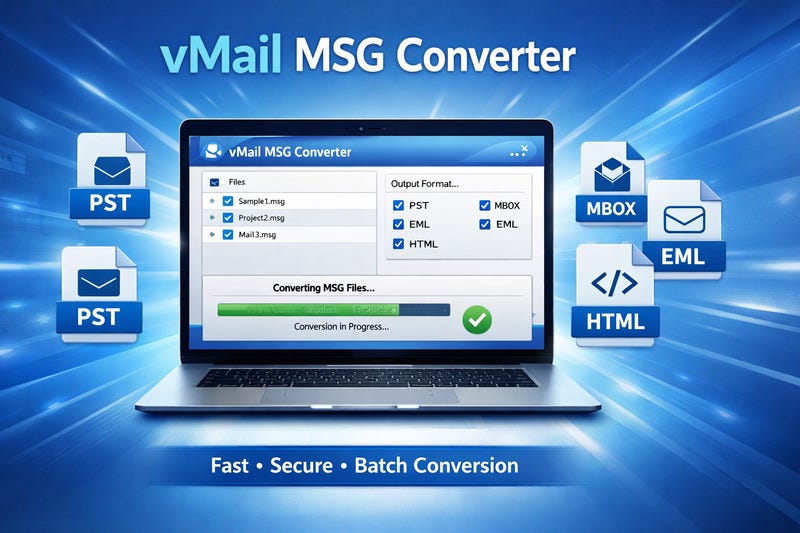
Organizations and individual users often store critical communication in MSG files, especially when emails are exported from Microsoft Outlook for backup, sharing, or legal review. Over time, MSG files can accumulate across devices and folders, becoming difficult to manage, search, or restore into Outlook in a structured way. This is where a dedicated conversion utility becomes valuable. The vMail MSG to PST Converter Tool is designed to consolidate scattered MSG emails into a single PST file, making the data easier to import, archive, and access inside Outlook.
This guide explains what MSG and PST formats are, why conversion is required, how the tool works, and how to use it step-by-step—while maintaining mailbox integrity, folder hierarchy, and attachments.
Understanding MSG and PST Formats
MSG is an Outlook message file format that typically stores a single email item. It can include metadata such as sender details, recipients, subject, timestamps, message body, and attachments. MSG files are useful for saving individual messages, but they are not ideal for long-term mailbox management because each file represents one item and must be opened separately.
PST (Personal Storage Table) is Outlook’s local data file format used for storing complete mailbox data—emails, folders, calendars, contacts, and more (depending on how the file is created and used). PST files are preferred when you want a structured mailbox view, quick searching, and easy importing into Outlook.
When you have many MSG files, converting them into PST offers a unified format that Outlook can read efficiently.
Why Convert MSG to PST?
Converting MSG files into PST is useful in several real-world scenarios:
Mailbox consolidation: Merge thousands of MSG emails into a single PST archive.
Easy import to Outlook: PST files can be opened or imported directly in Outlook.
Long-term backup and storage: A PST serves as a portable backup for emails.
Better search and organization: Outlook search works far better with PST than browsing separate MSG files.
Migration and handover: PST helps when moving email data between users, systems, or departments.
In short, PST conversion turns fragmented message exports into a structured, Outlook-friendly archive.
What the vMail MSG to PST Converter Tool Does
The vMail MSG to PST Converter Tool is built to automate and simplify the conversion process. Instead of manually dragging MSG files into Outlook (which is slow, error-prone, and inconsistent), the converter performs bulk processing while preserving the original email properties.
Key functions typically expected from a professional converter include:
Bulk conversion of single or multiple MSG files
Export to PST with preserved email formatting (HTML or RTF where applicable)
Retention of attachments, header fields, and metadata
Folder-based organization (when MSG files are arranged in directories)
Filtering or selective export (helpful when dealing with large collections)
Exact features can vary by version and license, but the primary goal remains the same: reliable conversion without data loss.
Pre-Conversion Checklist
Before starting, a few preparation steps can significantly improve accuracy and speed:
Organize your MSG files
Place MSG files in a single folder or sort them into subfolders by year, project, or sender. Tools often mirror folder structures during export.Confirm available disk space
PST files can grow quickly when attachments are included. Ensure sufficient storage for the output PST.Close Outlook (recommended)
Some systems perform better when Outlook is closed during conversion to reduce file locks or performance conflicts.Choose an output location
Save the PST in a known folder (for example, a dedicated “Email Archives” directory) to simplify later import into Outlook.
Step-by-Step: How to Use the vMail MSG to PST Converter Tool
While interface labels may differ slightly depending on the build, the workflow generally follows these steps:
Step 1: Install and Launch the Tool
Download and install the vMail MSG to PST Converter Tool on your Windows system. Once installed, open the application and review the main dashboard options.
Step 2: Add MSG Files or Folders
Most converters provide two input methods:
Add Files to select individual MSG files
Add Folder to import an entire directory of MSG files (including subfolders)
If you have a large dataset, choosing Add Folder is typically faster and maintains better organization.
Step 3: Preview and Validate Items
After loading MSG files, the tool usually displays a file list or tree view. Use this stage to confirm:
The expected number of emails is visible
Subject lines and sender details appear correct
Attachments are detected (where applicable)
Previewing a few random emails is a practical way to verify you selected the correct dataset before exporting.
Step 4: Select Export Format as PST
Choose PST as the output type. Some tools also allow additional formats, but for Outlook import and centralized archiving, PST is the most standard destination.
Step 5: Configure Conversion Options
Depending on features available, you may be able to set options such as:
Include/exclude attachments
Maintain folder hierarchy
Split PST by size (useful for very large exports)
Filter by date range (export only specific time periods)
If you are preparing PST for compliance or audits, filters and naming conventions can improve traceability.
Step 6: Choose Destination Path and Start Conversion
Select the output folder and provide a meaningful PST filename (for example: ProjectX_Archive_2024.pst). Then click Convert/Export to begin the process.
Conversion time depends on email volume, attachment size, and disk speed. After completion, the tool will typically show a success message with the output location.
How to Open the PST in Outlook
Once the PST is generated, you can access it in Outlook using either method:
Open PST (recommended for archives):
Outlook → File → Open & Export → Open Outlook Data File → browse to PST
This mounts the PST as a separate mailbox tree.Import PST (recommended for merging into mailbox):
Outlook → File → Open & Export → Import/Export → Import from another program or file → Outlook Data File (.pst)
Opening is usually safer for archival PSTs because it avoids mixing data into the primary mailbox.
Best Practices for Accurate, Clean Results
Keep your MSG dataset clean: remove duplicates and irrelevant exports before conversion.
Use folder naming standards: structured input folders produce a more usable PST layout.
Archive in smaller PSTs for large datasets: splitting by year or department improves Outlook performance.
Verify a sample after conversion: open the PST and check formatting, attachments, and date stamps.
Final Thoughts
The vMail MSG to PST Converter Tool offers a practical, professional solution for users who need to consolidate MSG emails into a single Outlook-ready archive. By converting MSG to PST, you gain better organization, easier searchability, and a reliable structure for storage, migration, and compliance. When you follow a disciplined workflow—organize files, preview content, configure export settings, and validate the output—you can produce a clean PST that remains accessible and manageable long-term inside Microsoft Outlook.